
Computer Log In #
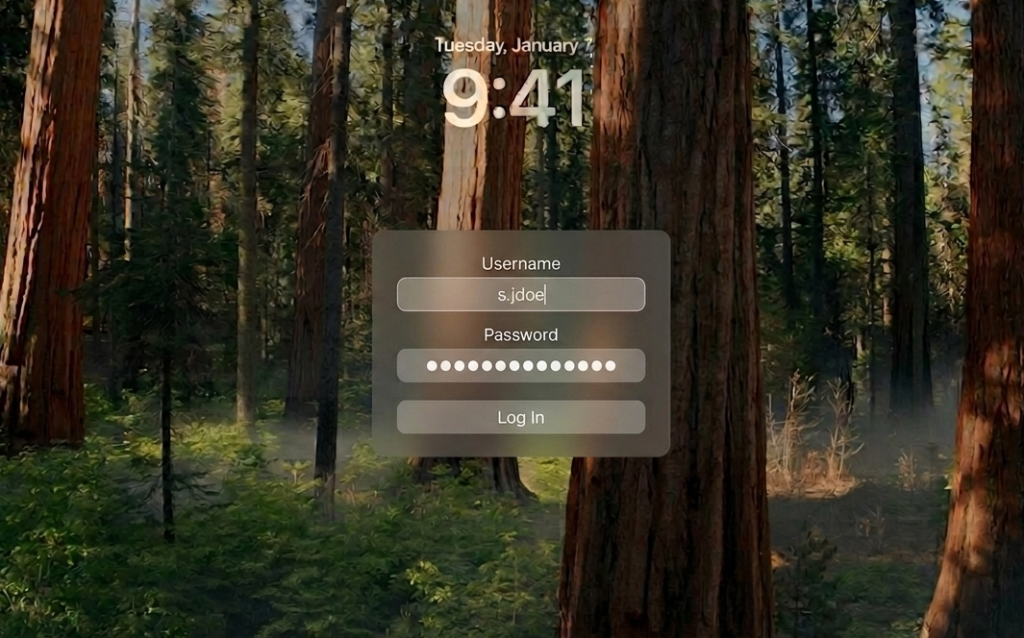
Log into your MacBook with your Cushman username (not the full email) and password provided on the welcome card taped on your laptop.
Google Chrome Set Up #
Open Google Chrome.

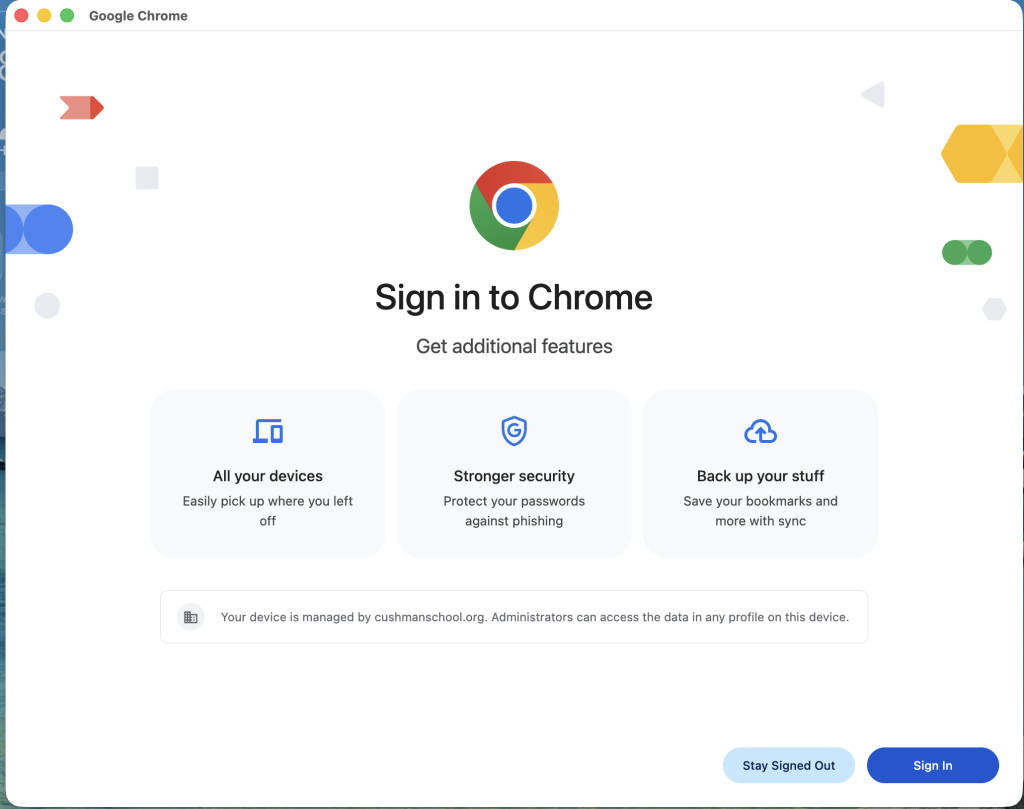
Click on Sign in as shown below and then log in with your Cushman School email and password.
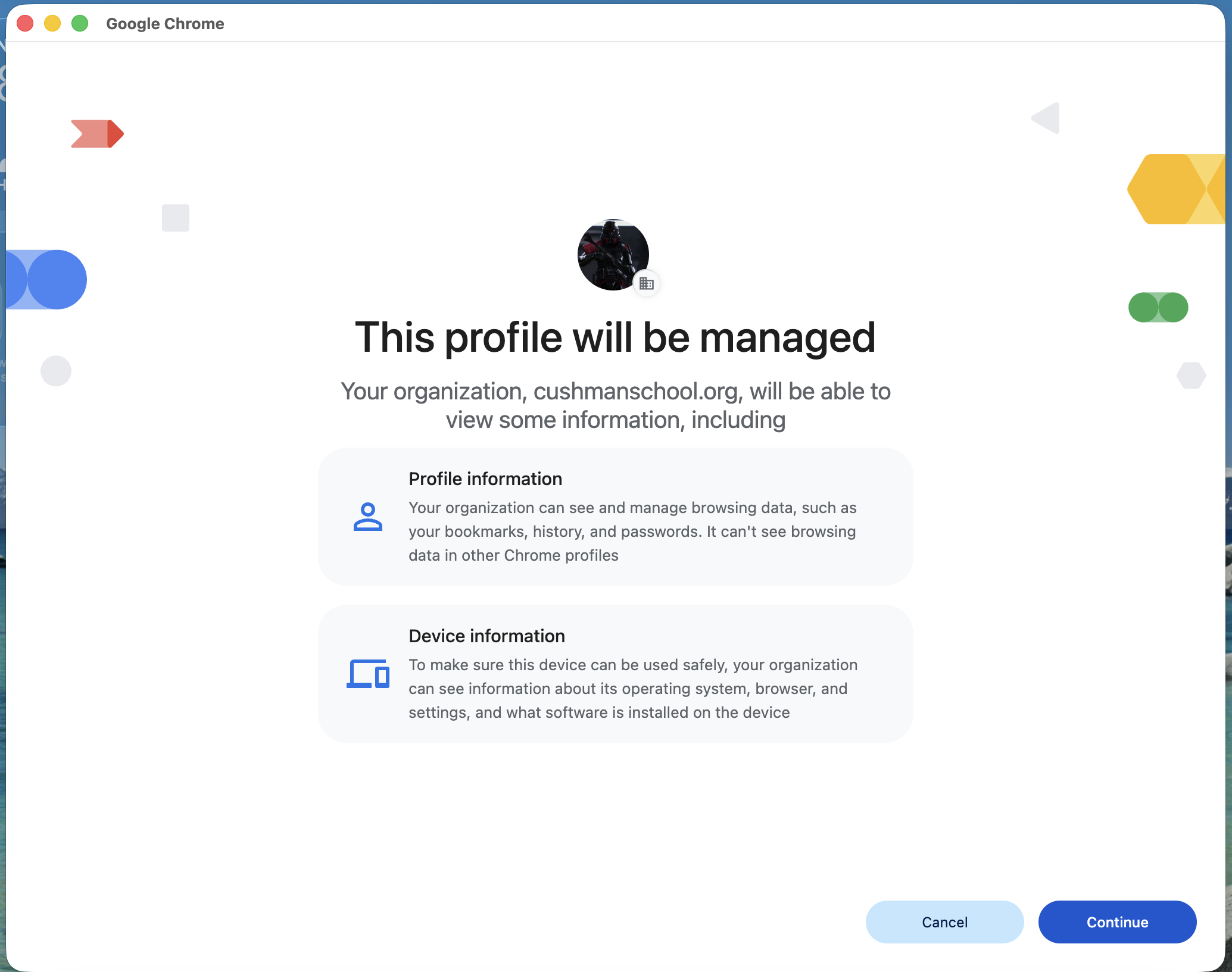
Click on Continue when you see “This profile will be managed”.
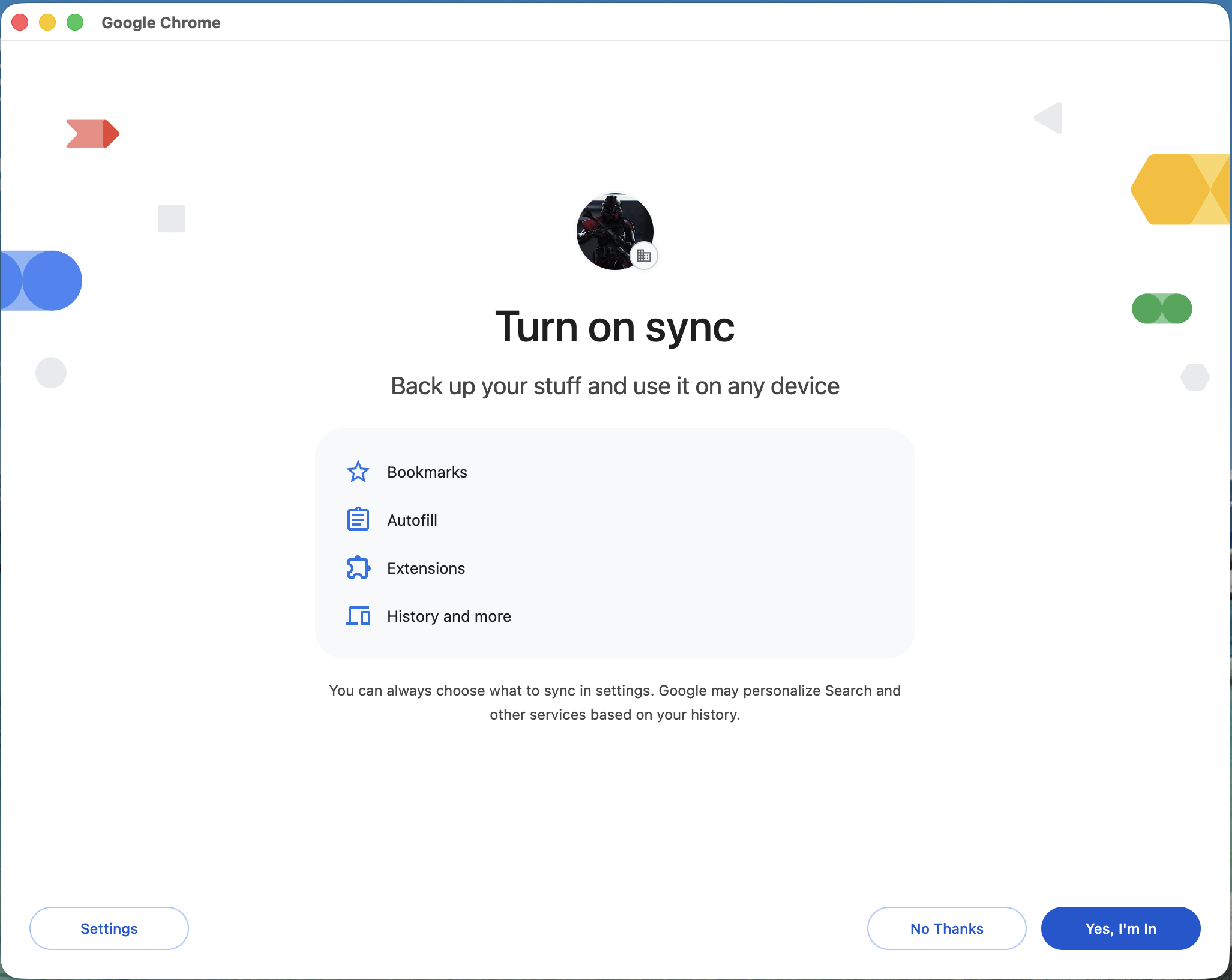
Click Yes I’m In on the Turn on sync screen as shown below.
If you are asked to change your default web browser to “Chrome”, click Use Chrome
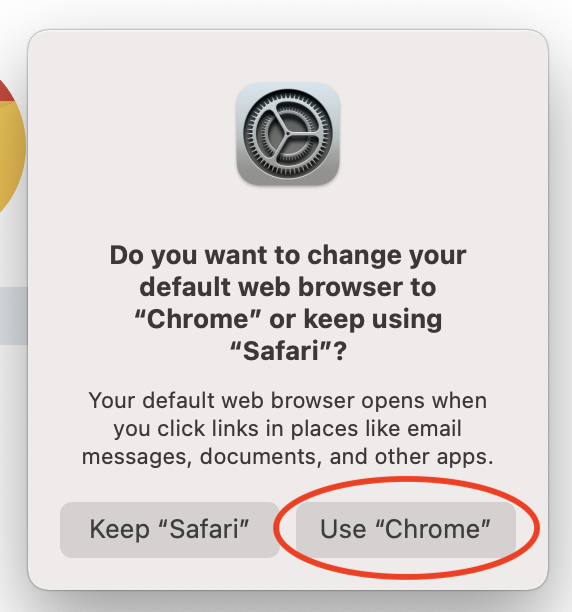
If you aren’t asked to change your default web browser automatically, then go to Settings > Desktop & Dock > Default web browser > switch from ‘Safari’ to ‘Chrome’

Accessing your Email on Google Chrome #
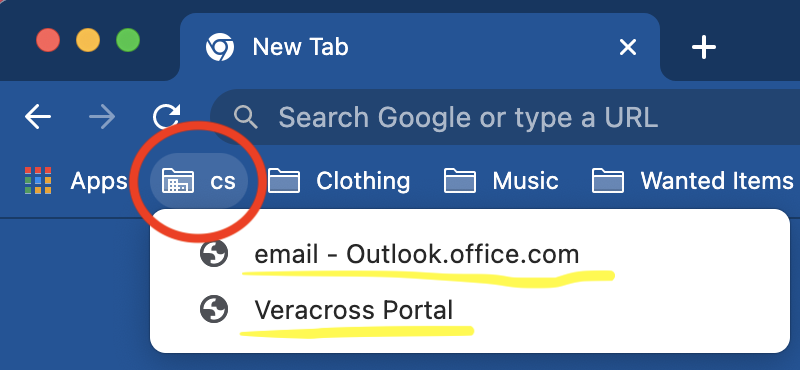
Open Google Chrome, click on the cs folder (the bookmark in the Google Chrome app at the top left corner) and then click on email – outlook.office.com.
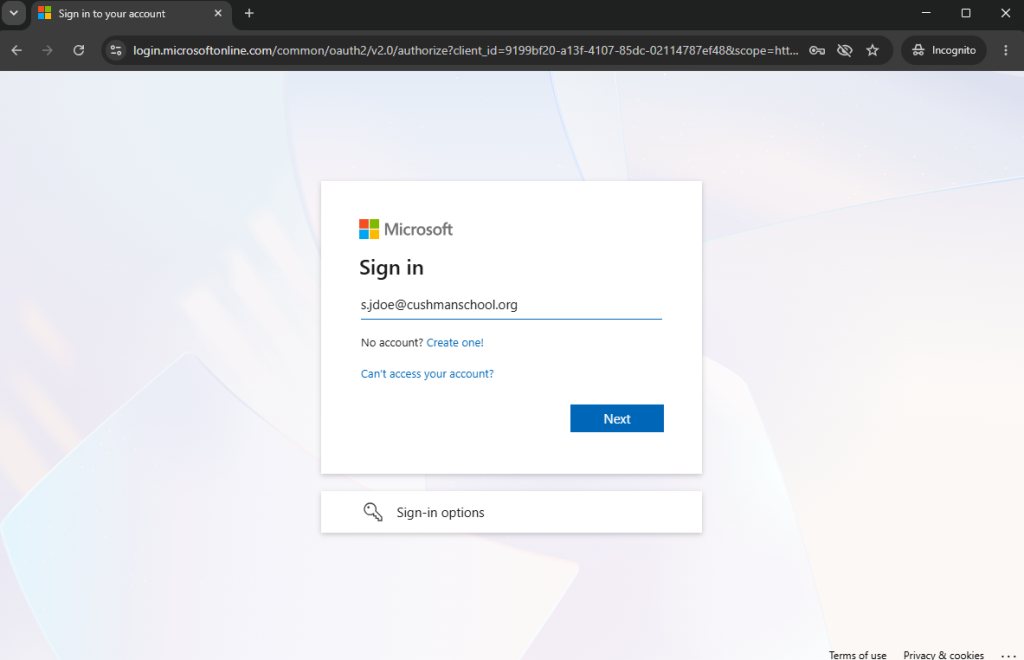
Sign in to your Outlook email with your Cushman email and password as shown below:
Accessing your Veracross Portal #
Open a new tab on Google Chrome and click on the cs folder again (the bookmark in the Google Chrome app at the top left corner) and then click on Veracross Portal.
Sign in to your Veracross Portal with your Cushman email and password as shown below:

Accessing your Email on the Outlook App #
Open the Outlook App

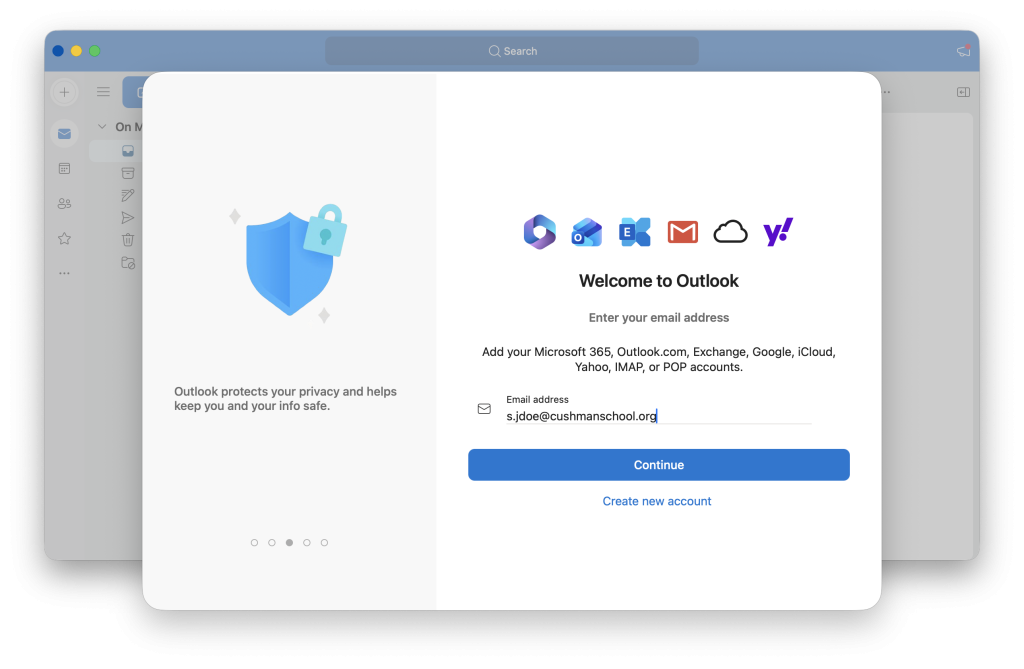
You will see a “Welcome to Outlook” window as shown below. Enter your Cushman email and click Continue
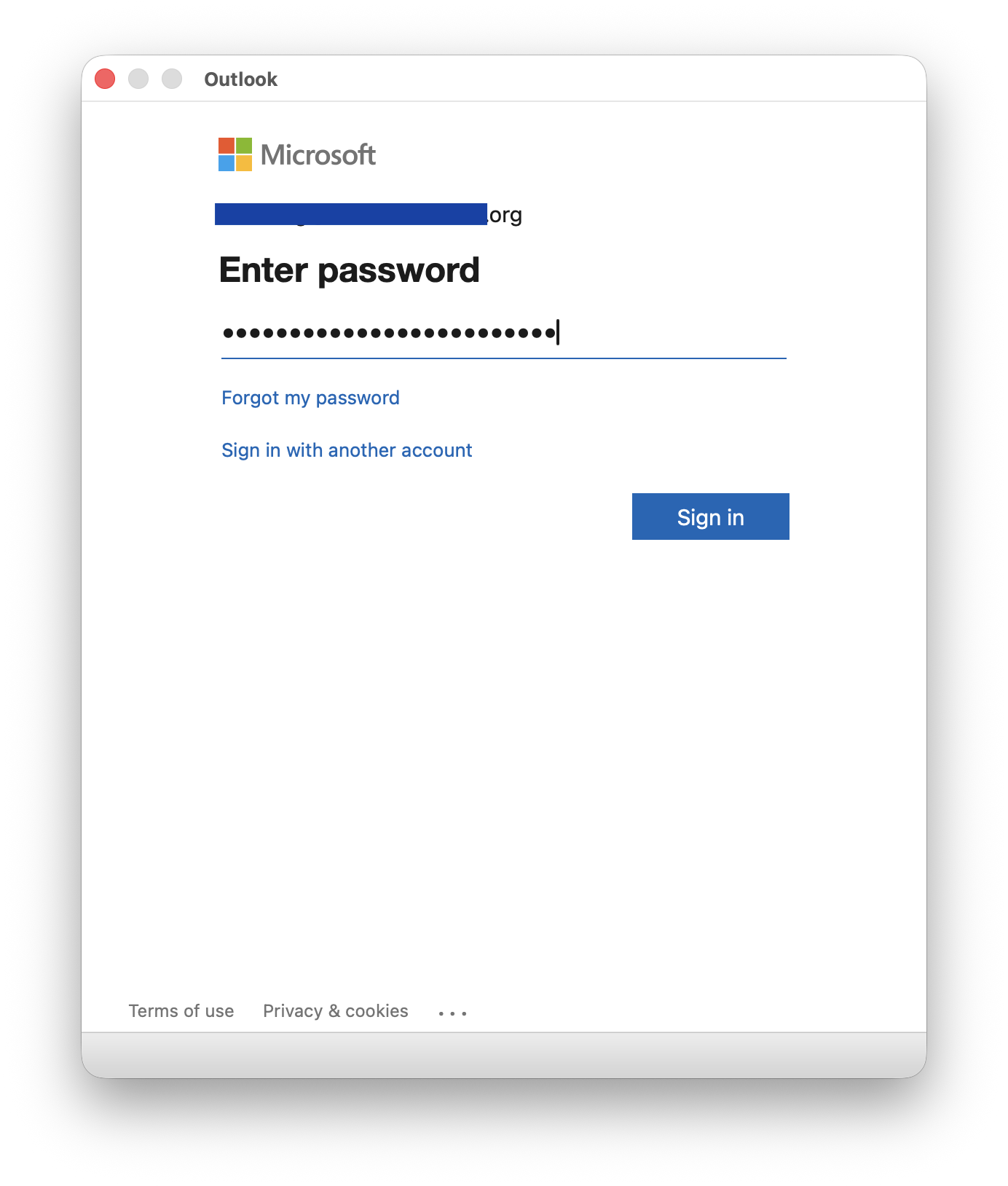
Enter your password and click Sign in
Click on Personalize Now as shown below

Choose and appearance and theme, then click on Continue as shown below
Select and appearance and theme, then click on Continue as shown below

Select a view, and click Continue as shown below

Select your preferred style for the reading pane, and click Done

Zoom #
Open the Zoom app and click on Sign in.


Click on Google
