
How to use Night Shift on your Mac #
Night Shift automatically shifts the colors of your display to the warmer end of the color spectrum after dark.

Studies have shown that exposure to bright blue light in the evening can affect your circadian rhythms and make it harder to fall asleep. Night Shift uses your computer’s clock and geolocation to determine when it’s sunset in your location. It then automatically shifts the colors in your display to the warmer end of the spectrum. In the morning it returns the display to its regular settings.
How to set up Night Shift #
Make sure that your Mac meets the system requirements for Night Shift, then follow these steps:
- Choose Apple menu () > System Preferences, then click Displays.
- Click the Night Shift tab.
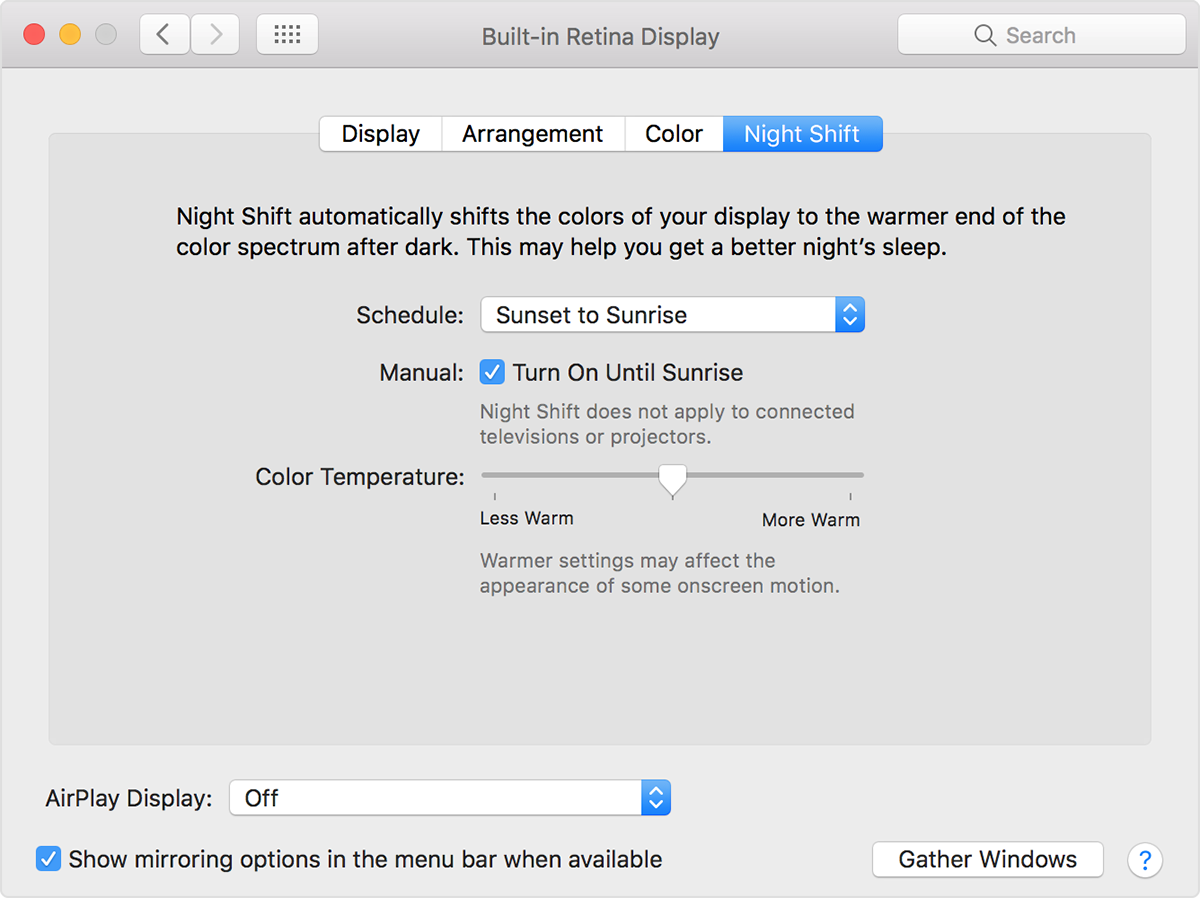
Schedule: Create a custom Night Shift schedule or have Night Shift turn on automatically from sunset to sunrise.
Manual: Control Night Shift manually.
- If Night Shift is off, select the checkbox to turn Night Shift on until 7 a.m. If you’re using a schedule, Night Shift automatically turns off at the scheduled time.
- If Night Shift is on, deselect the checkbox to turn Night Shift off. If you’re using a schedule, Night Shift turns on again at the scheduled time.
Color Temperature: Drag the slider to make the color temperature more or less warm when Night Shift is on. Warmer color temperatures show more yellow and less blue.
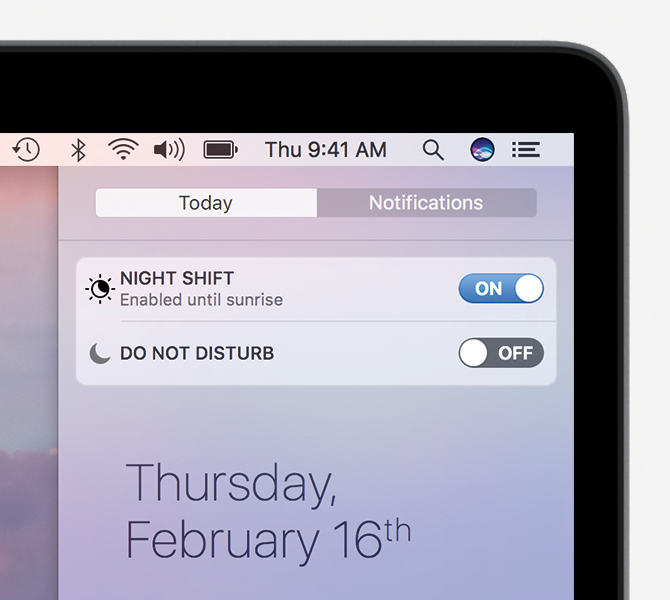
You can control the Manual setting from Notification Center as well. Click the Notification Center icon

in the menu bar, or swipe left with two fingers from the right side of your trackpad. Then scroll up to reveal the Night Shift setting.
