Logo Logo Logo Logo Logo
Knowledge Base
  • Home
  • Veracross
  • CushmanSchool.org
  • Cushman Email
  • Home
  • Veracross
  • CushmanSchool.org
  • Cushman Email

How can we help you?

Welcome to Cushman KB

  • Tech Support : First Things First!
  • Veracross : Login
  • Charger and Stylus Replacements
  • School Accounts

Apple - iPad

  • Apple : iPad : WiFi
  • Apple : iPad : Introduction
  • Apple : iPad : Shortcuts
  • Apple : iPad : Self Service
  • Apple : iPad : Camera
  • Apple : iPad : AirDrop
  • Apple : iPad : Zoom Backgrounds

Apple - MacBook Air

  • Apple : MacBook Air : Intro
  • Apple : MacBook Air : AirDrop
  • Apple : MacBook Air : Spotlight
  • Apple : MacBook Air : Screenshot
  • Apple : MacBook Air : Keyboard Shortcuts
  • Apple: Setup Instructions for MacBooks

How to Videos

  • Convert YouTube Video to MP4 or MP3

Apple - MacBook Pro

  • Apple : MacBook Pro : Self Service
  • Apple: Setup Instructions for MacBooks

Apple - General Info

  • Apple : MacBook Pro : Passwords
  • Apple : WiFi Tips
  • Apple : Night Shift

Communications

  • Cushman School Visual Standards and Official Logos
  • Ways to Communicate From Your Faculty Portal
  • Printing
  • Troubleshooting Email
  • Jabber
  • iPhone Email Setup
  • Back to School Instructions
  • Printing Troubleshooting

Distance Learning

  • Hybrid Classroom Setup
  • Classes on Zoom
  • Display Panel Troubleshooting

Veracross

  • Veracross : Entering Assignments
  • Veracross : Dropbox : Teacher and Student Process
  • Posting Honor Points in the Parent Portal

Teachers

  • Teachers Pay Teachers
  • Education Materials & Supplies Requests

Windows

  • PC: Setup Instructions for Windows Laptops

Classroom Resources

  • Classroom Resources: Screencastify
  • Home
  • Docs
  • Faculty & Staff
  • Communications
  • Troubleshooting Email
View Categories

Troubleshooting Email

1 min read

If you are having problems with your Outlook email app, restart your laptop first! Is the problem still there? Read the troubleshooting steps below.

I’m not Receiving Emails on my Outlook App #

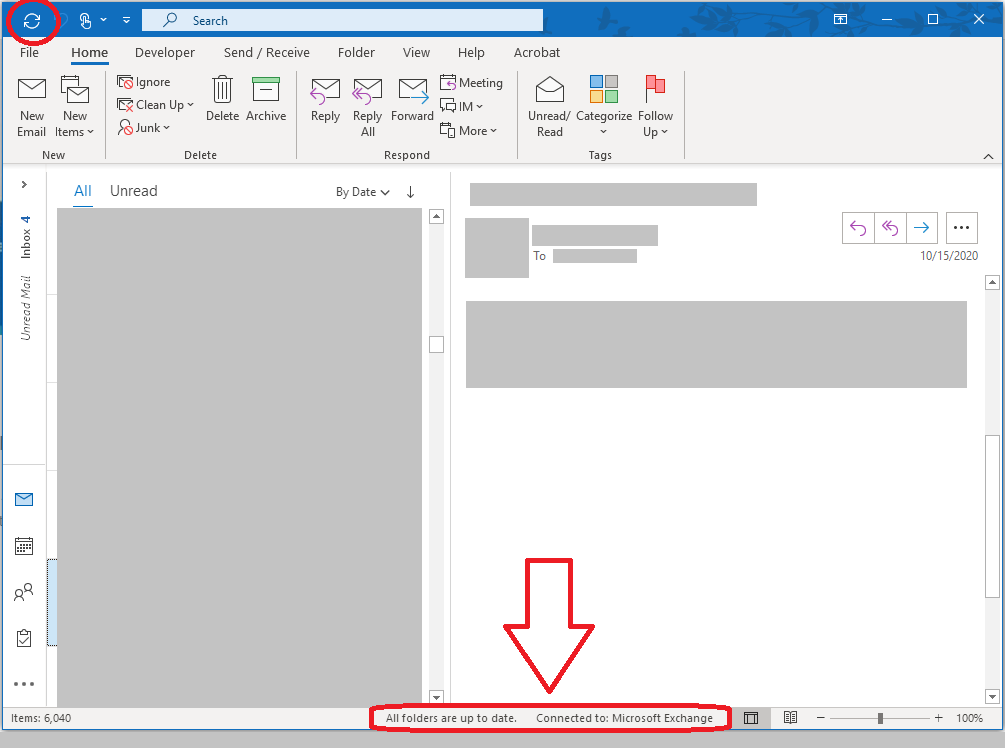
1. Check your server and Wi-Fi connectivity: At the bottom right corner of the Outlook App, make sure it says All folders are up to date. Connected to: Microsoft Exchange. If your email is not connected to Microsoft Exchange, then it will say Needs Password. In that case, click on that message and type your password. Refresh the app by clicking on the refresh icon located at the top left corner. Please refer to the image below:
2. Check your Outlook’s Junk folder.

3. Your Outlook app may be working offline. Look for Working Offline at the bottom of your Outlook window. If you see this text, choose the Send/Receive tab at the top of the screen, then choose the Work Offline button to disable offline mode. Click here for more information.

4. Quit/Close the Outlook App and make sure you are connected to Wi-Fi. Open a web browser and see if you can browse the internet. If not, check your network connection. Re-open the Outlook App and check if your emails have come through.

5. Focused Inbox: This feature separates your inbox into two tabs—Focused and Other. Your most important email messages are on the Focused tab while the rest remain easily accessible—but out of the way—on the Other tab. The emails you may be expecting could be in the Other tab.

6. Access your Outlook account on the web.

email, Microsoft Outlook
Was this helpful?
Updated on November 11, 2021
PrintingPrinting Troubleshooting
Table of Contents
  • I'm not Receiving Emails on my Outlook App
Contact

+88 (0) 101 0000 000

youremail@yourdomain.com

198 West 21th Street, Suite 721
New York, NY 10010

Navigation
  • About Us
  • Support
Features
  • Data Analysis
  • High Speed
  • Backup
  • Live Support
Newsletter
Nunc hendrerit, tortor eu facilisis aliqua, risus nisl varius erat, et euismod.
[contact-form-7 id="83" html_class="cf7_custom_style_1"]

POWERED BY