Logo Logo Logo Logo Logo
Knowledge Base
  • Home
  • Veracross
  • CushmanSchool.org
  • Cushman Email
  • Home
  • Veracross
  • CushmanSchool.org
  • Cushman Email

How can we help you?

Welcome to Cushman KB

  • Tech Support : First Things First!
  • Veracross : Login
  • Charger and Stylus Replacements
  • School Accounts

Apple - iPad

  • Apple : iPad : WiFi
  • Apple : iPad : Introduction
  • Apple : iPad : Shortcuts
  • Apple : iPad : Self Service
  • Apple : iPad : Camera
  • Apple : iPad : AirDrop
  • Apple : iPad : Zoom Backgrounds

Apple - MacBook Air

  • Apple : MacBook Air : Intro
  • Apple : MacBook Air : AirDrop
  • Apple : MacBook Air : Spotlight
  • Apple : MacBook Air : Screenshot
  • Apple : MacBook Air : Keyboard Shortcuts
  • Apple: Setup Instructions for MacBooks

How to Videos

  • Convert YouTube Video to MP4 or MP3

Apple - MacBook Pro

  • Apple : MacBook Pro : Self Service
  • Apple: Setup Instructions for MacBooks

Apple - General Info

  • Apple : MacBook Pro : Passwords
  • Apple : WiFi Tips
  • Apple : Night Shift

Communications

  • Cushman School Visual Standards and Official Logos
  • Ways to Communicate From Your Faculty Portal
  • Printing
  • Troubleshooting Email
  • Jabber
  • iPhone Email Setup
  • Back to School Instructions
  • Printing Troubleshooting

Distance Learning

  • Hybrid Classroom Setup
  • Classes on Zoom
  • Display Panel Troubleshooting

Veracross

  • Veracross : Entering Assignments
  • Veracross : Dropbox : Teacher and Student Process
  • Posting Honor Points in the Parent Portal

Teachers

  • Teachers Pay Teachers
  • Education Materials & Supplies Requests

Windows

  • PC: Setup Instructions for Windows Laptops

Classroom Resources

  • Classroom Resources: Screencastify
  • Home
  • Docs
  • Faculty & Staff
  • Communications
  • Printing Troubleshooting
View Categories

Printing Troubleshooting

< 1 min read

In this article, we will share a printing workaround that can help educators and staff overcome issues with printing from their Cushman device.

Print from the web from your Cushman device #

1. Make sure your Cushman device is connected to the Cushman Wi-Fi or CS WIFI.

2. Go to the link in the cs folder > Print Dashboard or click here and login with your Cushman credentials.
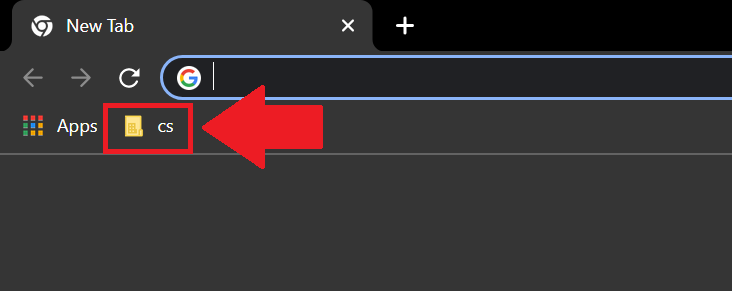
Note: You must be logged into your Cushman Google account and enable your Google browser bookmarks bar in order to see the cs folder.

3. Click on Web Print, upload a file and print.
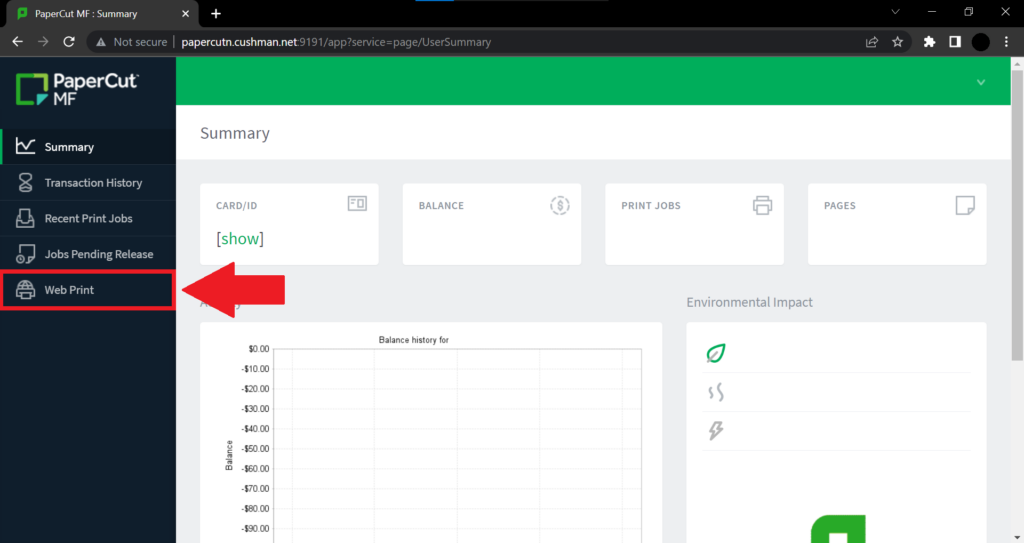
follow-me-print, on campus, PCClient, print
Was this helpful?
Updated on April 11, 2023
Back to School InstructionsCushman School Visual Standards and Official Logos
Table of Contents
  • Print from the web from your Cushman device
Contact

+88 (0) 101 0000 000

youremail@yourdomain.com

198 West 21th Street, Suite 721
New York, NY 10010

Navigation
  • About Us
  • Support
Features
  • Data Analysis
  • High Speed
  • Backup
  • Live Support
Newsletter
Nunc hendrerit, tortor eu facilisis aliqua, risus nisl varius erat, et euismod.
[contact-form-7 id="83" html_class="cf7_custom_style_1"]

POWERED BY