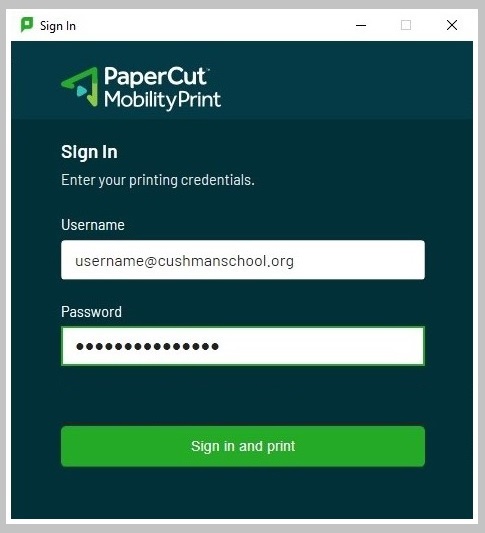
If you are installing the printer for the first time, click here. When you send a print job, you will need to authenticate using your Cushman Google credentials.
– To release your print job at the printer, use either your print code or your Cushman Google credentials.
– Check your email for the print code sent from “printmail@cushmanschool.org” with the subject line “Your Cushman Print Code.”
– If you did not find your print code in your email, then email techissues@cushmanschool.org or submit a ticket to request your print code be sent to you.
If you are having problems with your printer, then follow these instructions:
1. Restart your device and make sure it is on the lastest operating system.
– Restarting your device should take less than 5 minutes, unless your device has pending updates, then it might take longer for your device to restart.
– Update your device to the latest operating system. If this doesn’t fix your printer, then follow the next steps.
2. Remove the “Follow-Me-printing [PAPERCUTN](Mobility)” printer in your system settings and restart your device.
– For Macs, go to System Preferences > Printers & Scanners > Select printers with (Mobility) in the title and click minus (-) icon to remove it.
– For Windows devices, go to Settings > Devices > Printers & Scanners > Select printers with (Mobility) in the title and click on Remove Device.
3. Click here to set up printing on your device.
Below is the PaperCut MobilityPrint sign in window you’ll see when you send a print job. You will need to authenticate using your Cushman Google credentials.