Computer Log In #
You are given a Cushman username and a Cushman email, i.e., jdoe and jdoe@cushmanschool.org. Your credentials were provided via email, or on your account information sheet.
Log into your MacBook with your Cushman username and password. You will be prompted change your password upon your first session.
Launchpad and Self Service #
Open the Launchpad app to expose all installed aplications.
Open the Self Service app to find Cushman School Mac apps.
Outlook #
Outlook is The Cushman School’s designated email service. Access Outlook using the Outlook app on your Mac or at https://outlook.office.com/mail/.
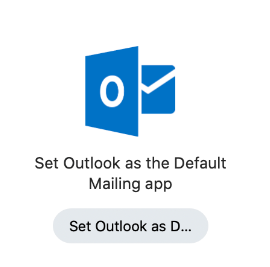
Set the Outlook app your Mac’s default email application by using the item below in the Self Service app (Set Outlook as the Default Mailing app).
Google Chrome #
Google Chrome is The Cusman School’s preferred browser and can be installed using Self Service. Please use Chrome for web browsing whenever possible.
Chrome Set Up #
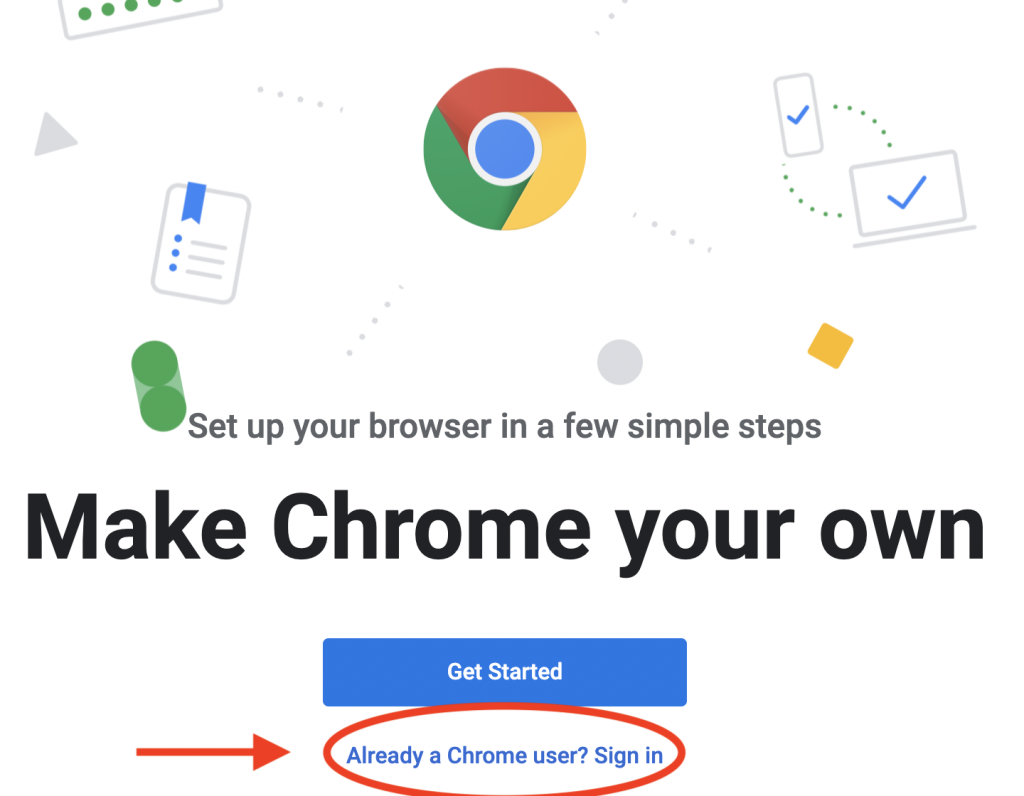
Launch and log into Chrome with your Cushman School email and password. Click on Already a Chrome user? Sign in as shown below.
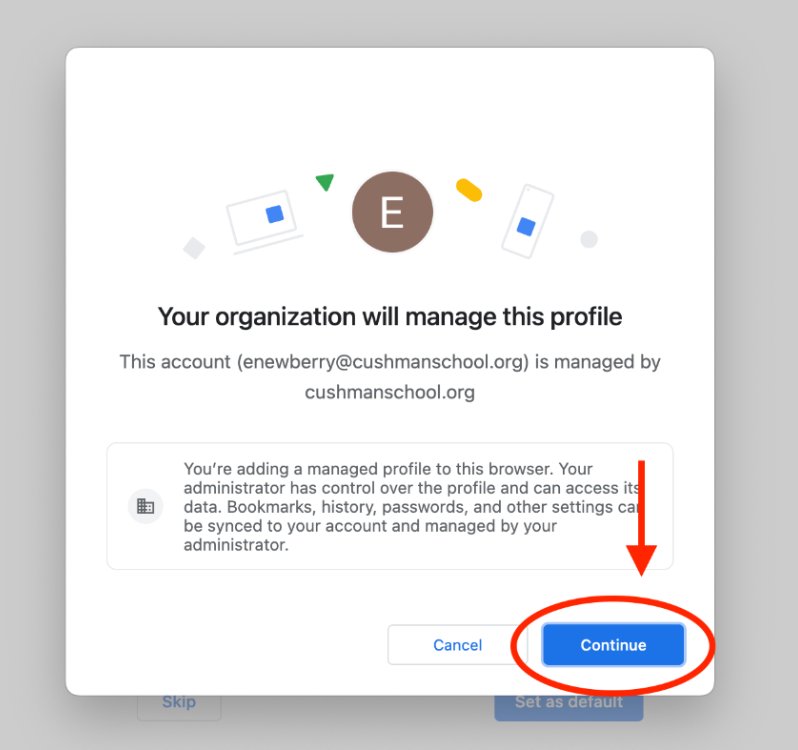
Click on Continue when you see “Your organization will manage this profile”.
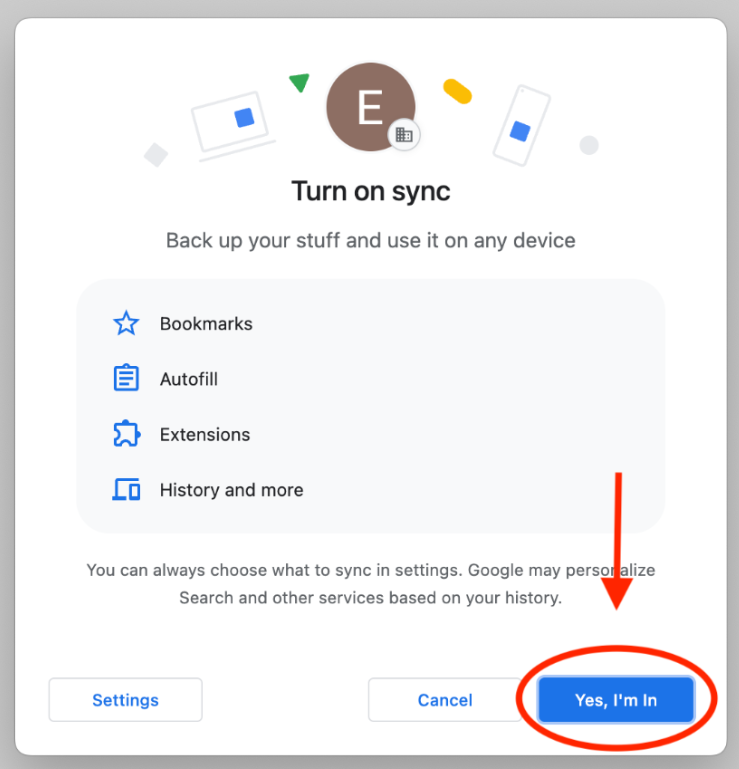
Click Yes I’m In on the Turn on sync screen. Always enable sync when working in your Cushman profile in the Chrome app.
Note: Always ensure you are in your Cushman profile, while using Chrome, and when you operate as a Cushman employee. You are allowed personal profiles, and must manage them seperately on your own.
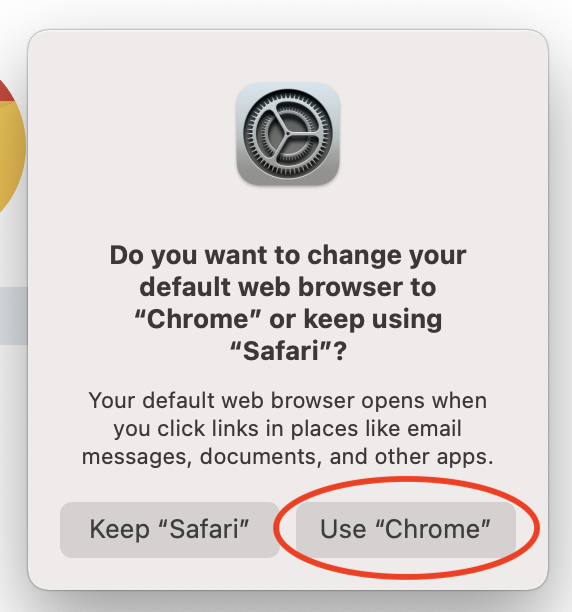
If prompted with this dialogue box, click Use Chrome.
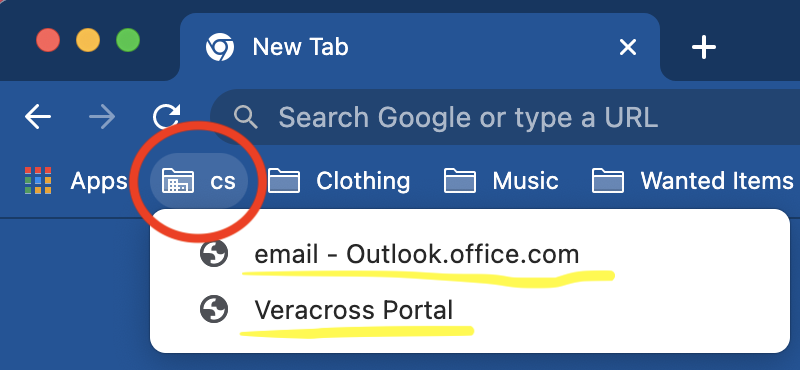
Tip: Email and Veracross weblinks are in the “cs” folder in Google Chrome’s bookmarks.
Expose bookmarks with CTRL + SHIFT + B.
Veracross #
Navigate to https://portals-app.veracross.com/cushman/ and sign in with your Cushman credentials.
Outlook App #
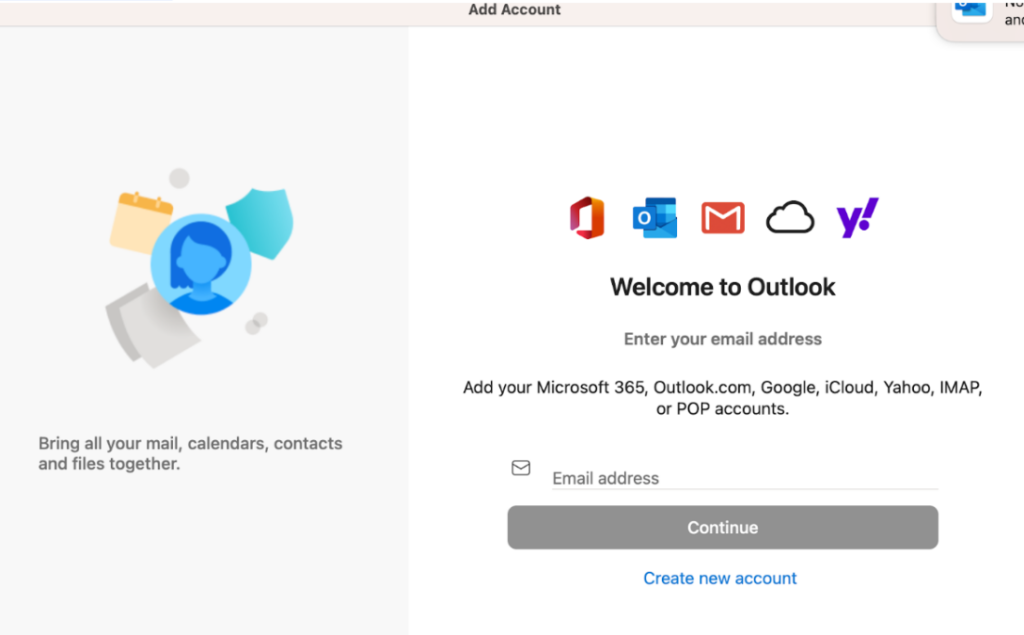
Locate the Outlook App in launchpad (tile icon) and open it. You will be prompted with a Welcome dialogue box asking to get started. Enter your Cushman email and click Continue.
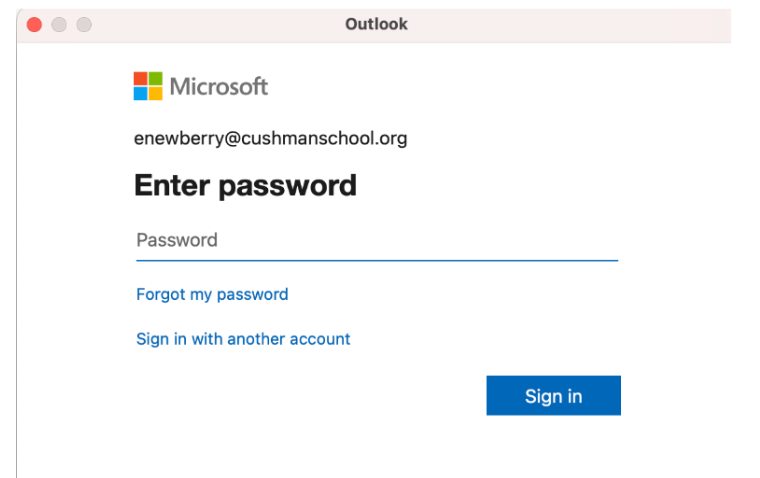
Enter your password and click Sign in.
Printing #
Please refer to this article to set up the follow-me printer on your device: https://cushman-kb.com/docs/faculty-staff/printing/printer-installation/
Zoom #
Check if Zoom is installed by looking in Launchpad. If it is not installed, open Self Service and install Zoom. Sign in to Zoom using your Cushman Google account.