
Wi-Fi Connection & Computer Login #
Connect to the school Wi-Fi network: csGuest. The password is updated annually. Please contact the tech department for the current password.
Log in to your computer using your Cushman email address and password. Your credentials were provided via email or on your account information sheet.
Securing Your Accounts
#
This section applies to new employees only. If you’re a returning employee, skip to the “Changing Default Apps” section.
You’ll need to enable Multi-Factor Authentication (MFA) for your Google and Microsoft accounts. Have your personal mobile phone ready.
Before you start: You only need one authenticator app for this process. Check if you already have the Microsoft Authenticator app or the Google Authenticator app installed on your phone. If so, skip the “Get the Authenticator App” section.
Get the Authenticator App #
Download the Google Authenticator from the App Store (for iOS) or Google Play Store (for Android). Use your personal Gmail account to login or choose to continue without signing in.
Important: Do not sign in with your Cushman account in the Google Authenticator app. This can create a login loop and block access to your account.
Notes:
– If you do not sign in to the Google Authenticator app and later switch phones, you will need to contact the Technology Department for a backup code to regain access to your Google account.
– If you use your personal Gmail account with Google Authenticator, your codes will automatically transfer to your new phone.
Turn on 2-step verification for your Google Account #
Go to myaccount.google.com/security on your Windows device and turn on 2-Step Verification.
Enable MFA for your Microsoft Account #
Go to mysignins.microsoft.com/security-info on your Windows device and enroll in Multi-Factor Authentication (MFA).
Changing default apps #
Click the Windows key and type “default apps” and open the “Default apps” system settings window.
Steps to set Outlook as your default app #
-Under “Set defaults for applications” (second search bar), type Outlook
-Scroll down to ‘MAILTO’ and set Outlook as the default app
Steps to set Google Chrome as your default app #
-Under “Set defaults for applications” (second search bar), type Google Chrome
-Make Google Chrome your default by clicking on ‘Set default’
Google Chrome #
Open Google Chrome and log in with your Cushman email address. Make sure to link your data.
If you are signing into Google Chrome for the very first time on your computer, then click on ‘Already a Chrome user? Sign in’ and follow the prompts:
-Your organization will manage this profile: click ‘Continue’
-Turn on sync: click ‘Yes, I’m in’
Veracross #
Navigate to https://portals-app.veracross.com/cushman/ and sign in with your Cushman credentials.
Outlook Email #
Click the Windows key and type “Outlook” and open the Outlook app. Sign in using your Cushman email address.
Alternatively, you can go to https://outlook.office.com/mail/ and login with your Cushman credentials.
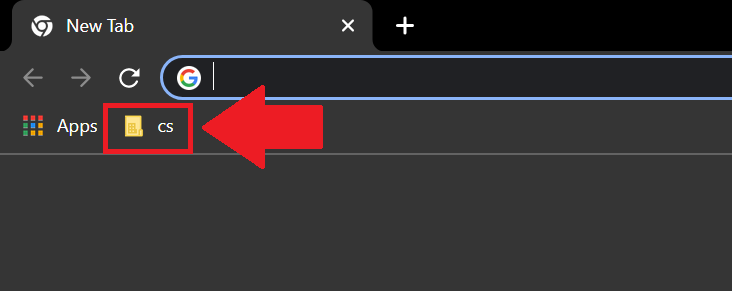
Tip: You can locate direct links to your Email and Veracross by clicking on the “cs” folder on your Google Chrome browser. See the screenshot below for reference. If you don’t see a bookmarks bar then hold down CTRL + SHIFT + B to make it visible.
OneDrive #
Click the Windows key and type ‘OneDrive’ and open the app. Follow the prompts to ensure your data is backed up and previously backed up data is available.
Printing #
Please refer to this article to set up the follow-me printer on your device: https://cushman-kb.com/docs/faculty-staff/printing/printer-installation/
Zoom #
Open the Zoom app and click “Sign in”, then click “Sign in with Google.”
If you have questions, please contact techissues@cushmanschool.org